Erase Object from Photo Make anything vanish from your photos
Brush over a person, sign or mess and it disappears — the background fills back in on its own.


or drop a photo anywhere · paste with Ctrl/⌘ V
FreeNo sign-upProcessed on your device
No photo handy? Try one of ours
Processed on your device · Nothing uploaded
Real results
Gone without a trace
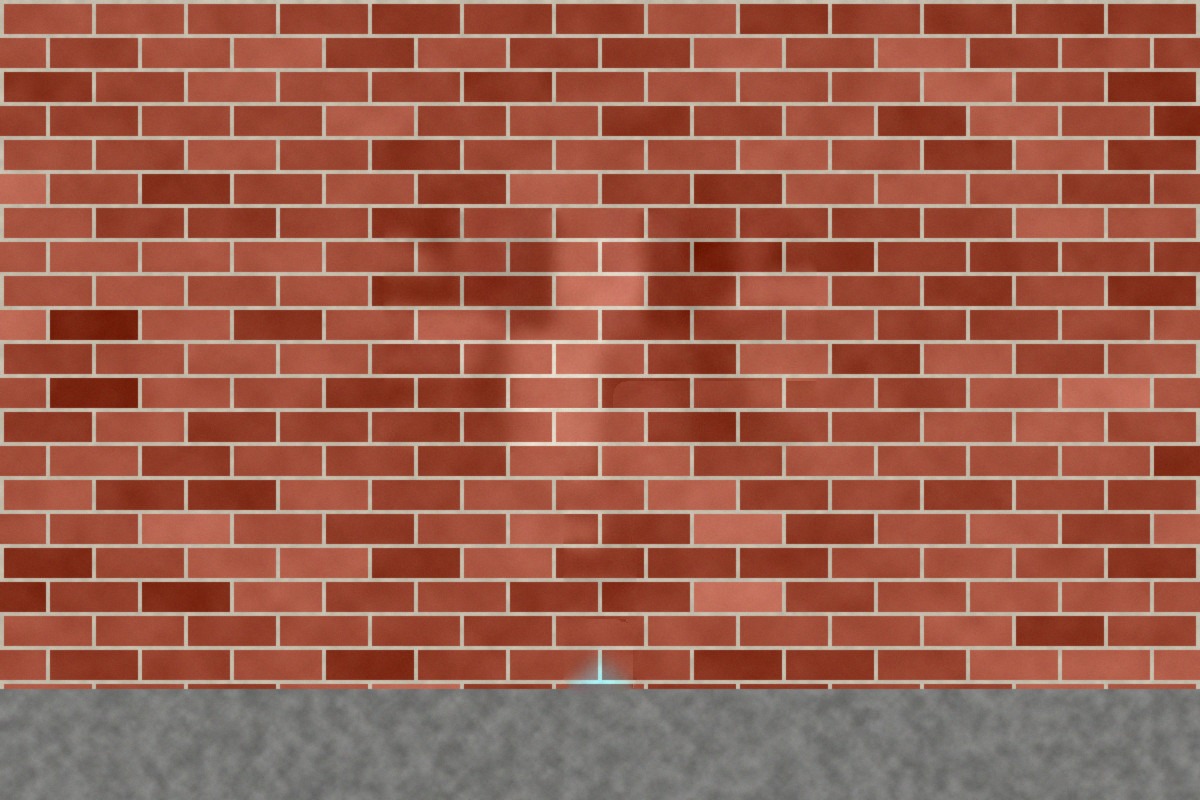
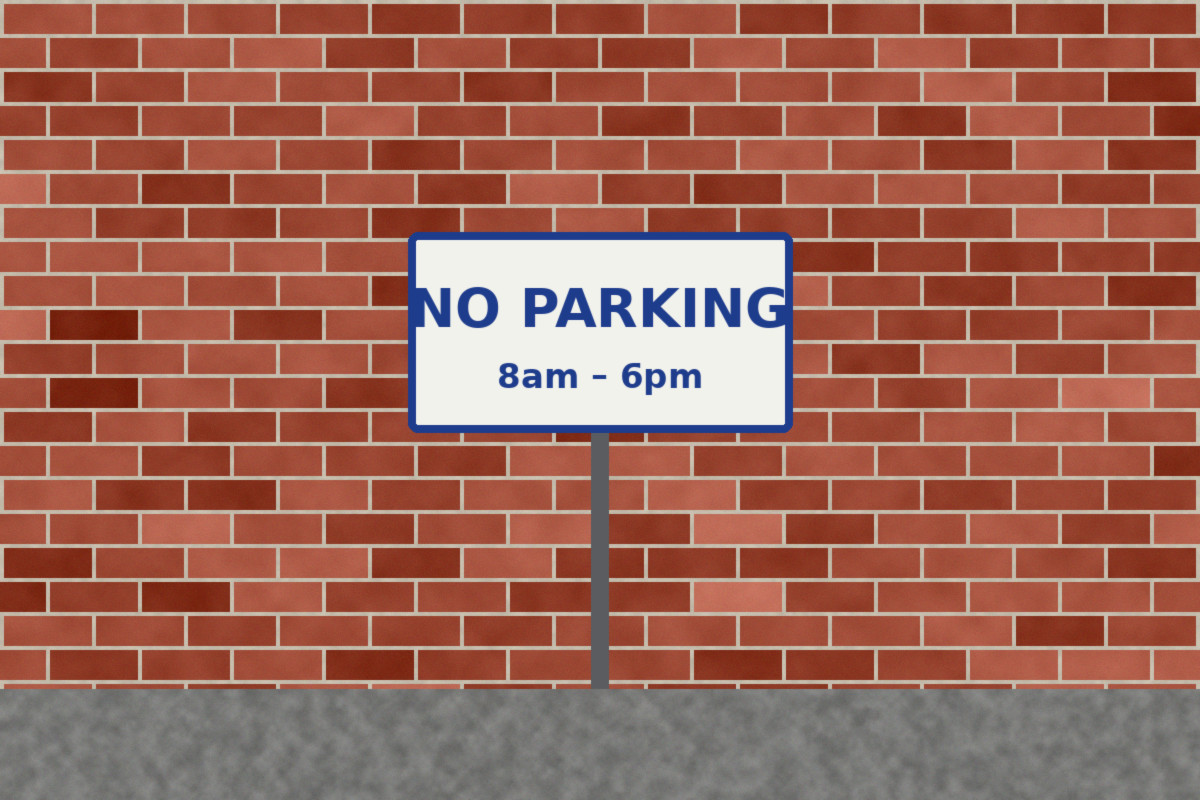
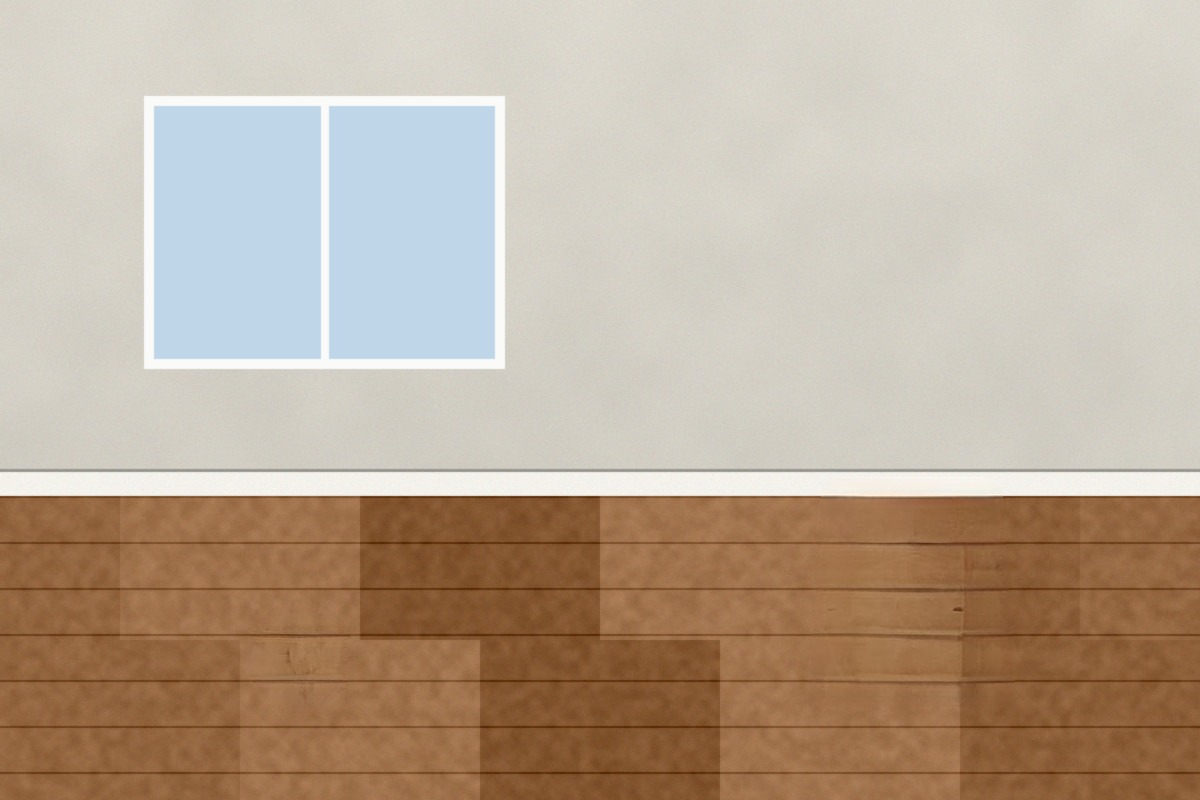
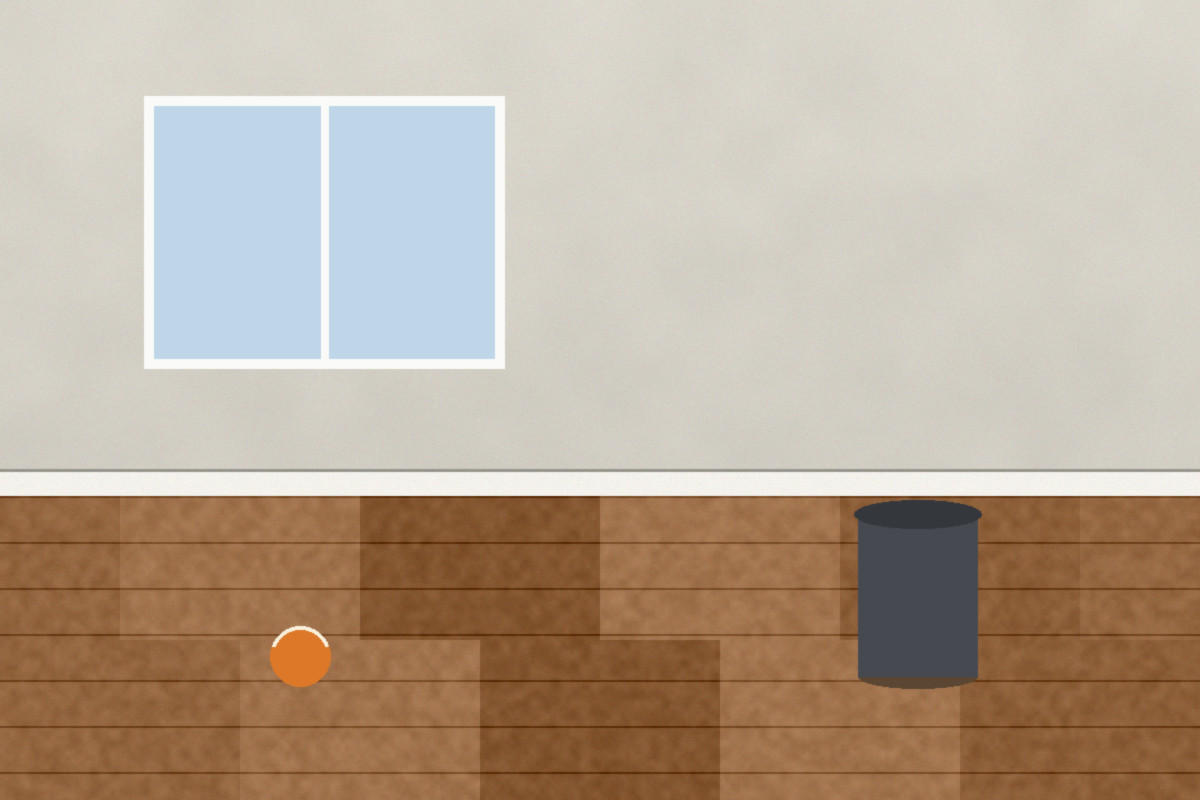
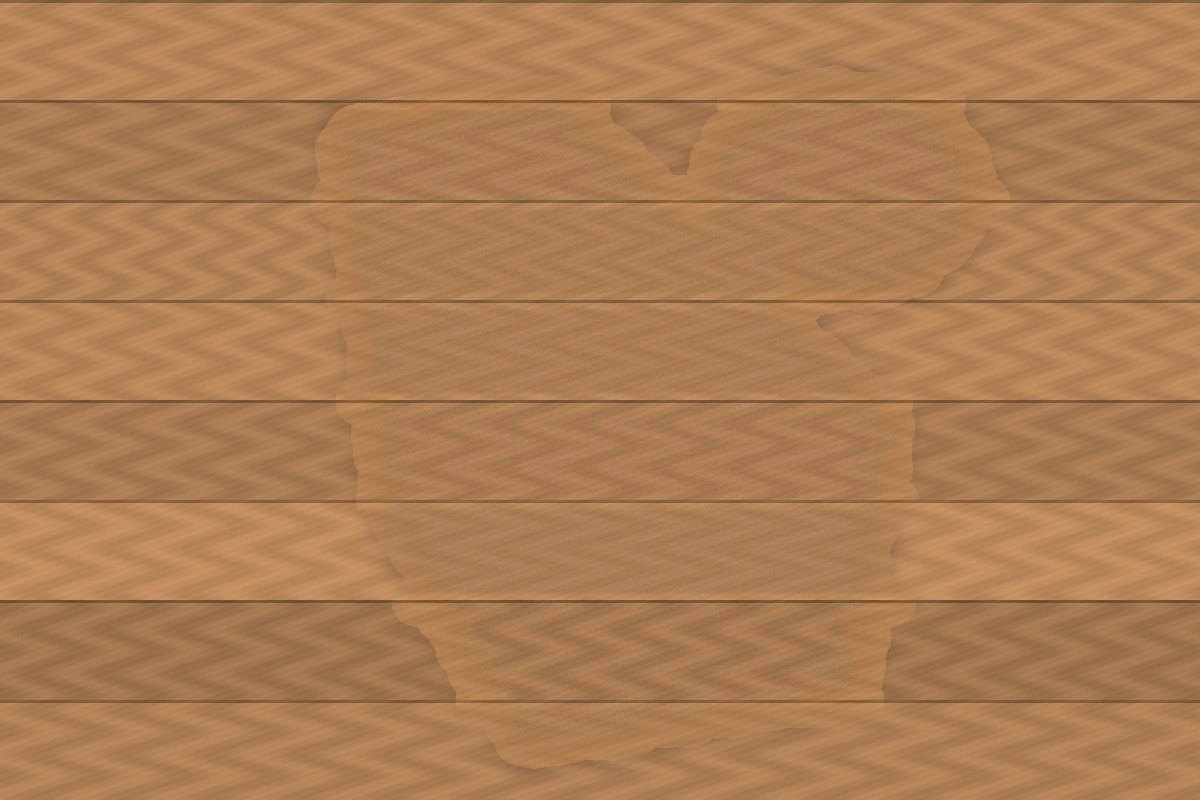
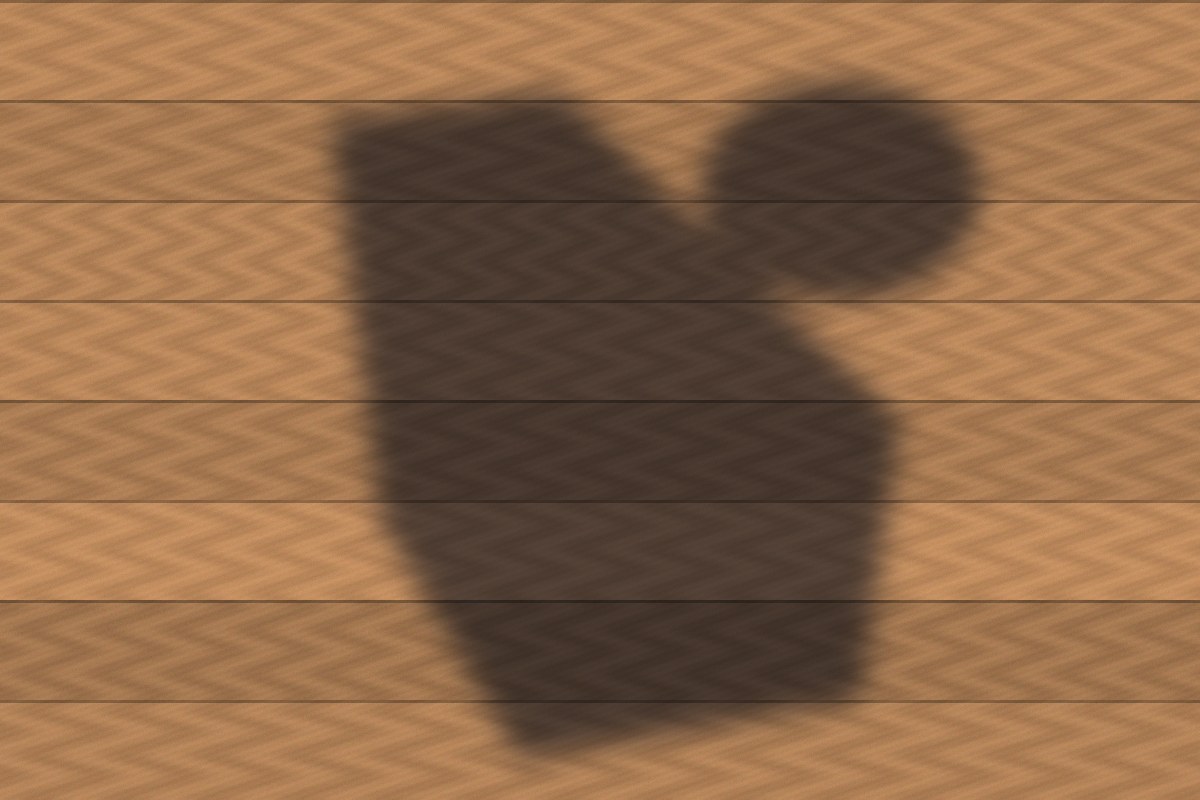
Every pair below came out of this eraser with its default settings and one press of Erase. Drag across a photo to compare.


Three steps
Choose. Brush. Download.
Choose a photo
Drop it in, paste it, or snap one with your phone camera.
Brush what should go
Paint over it, or just tap it — people, text and wires are found for you.
Download the clean photo
Full size, no watermark. Undo anything you don't like first.
All tools
What do you want to remove?
Pick the job — the same eraser opens, already set up for it.
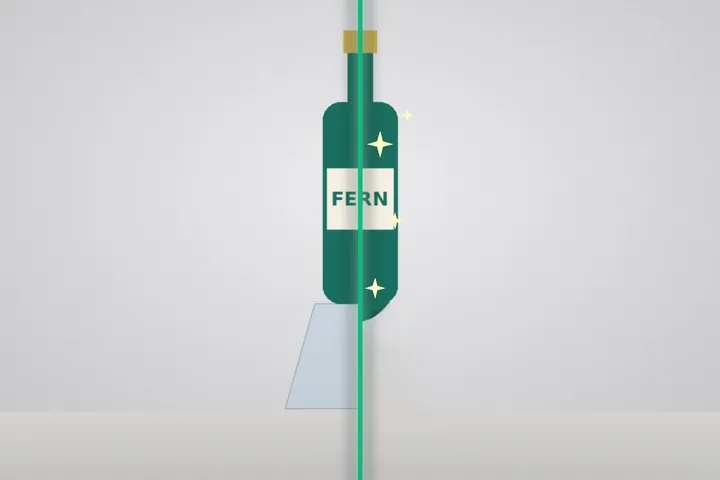
Batch Object Removal
Remove the same object from many photos: a studio stand, a sensor spot, your own overlay
Open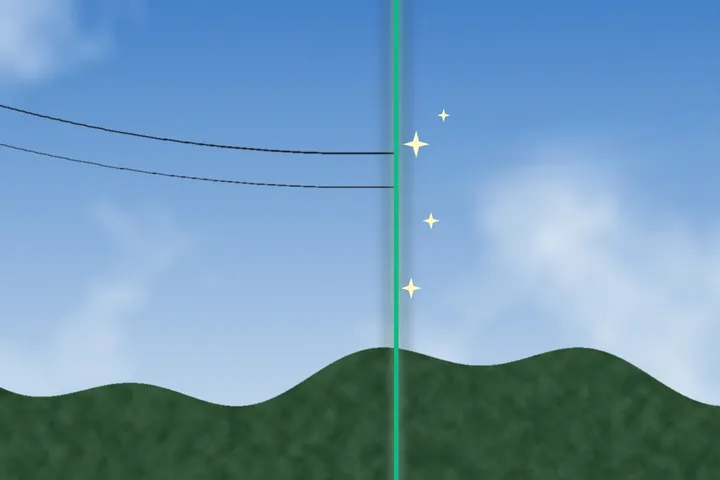
The AI comes to the photo
What runs where in EraseObject: the models your browser downloads, how an erase is computed on…
Open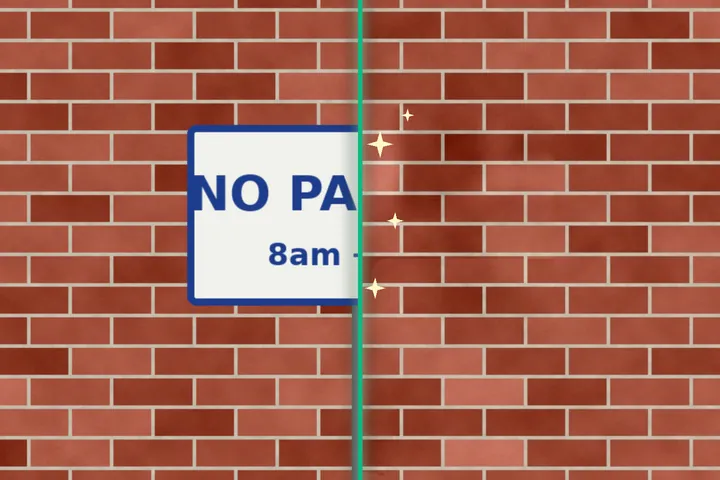
Remove Text from Image
Text mode finds lettering in your photo locally — captions, dates, labels, signs
Open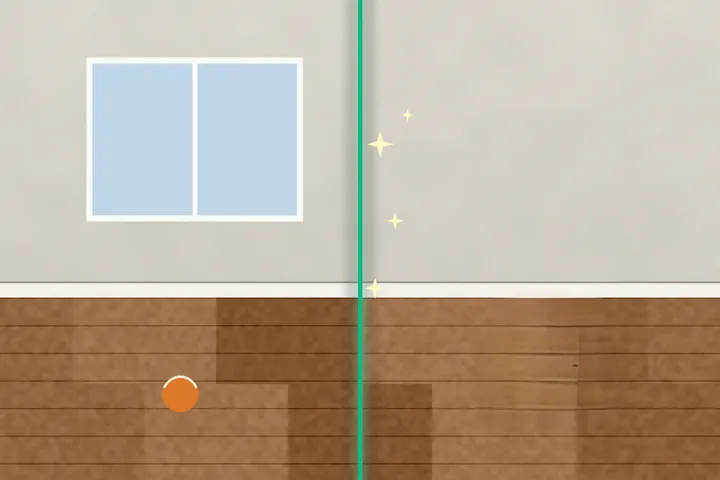
Photo Cleanup
Mark every distraction first — litter, signs, cables, stray objects — then erase them in one go
Open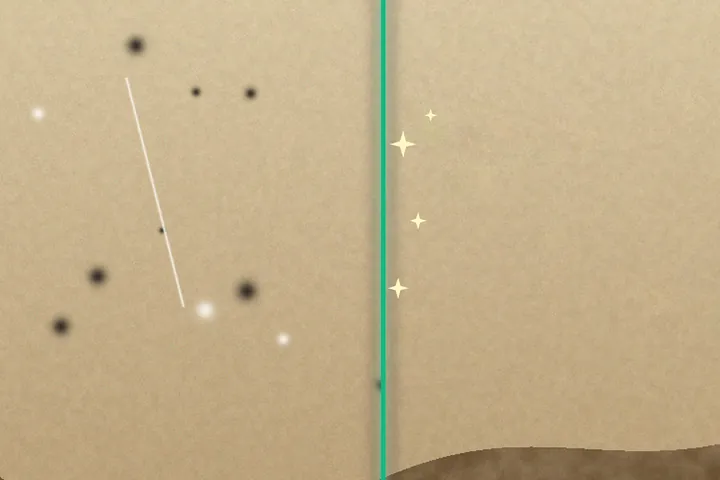
Remove Blemishes
Click a spot and it is repaired straight away
Open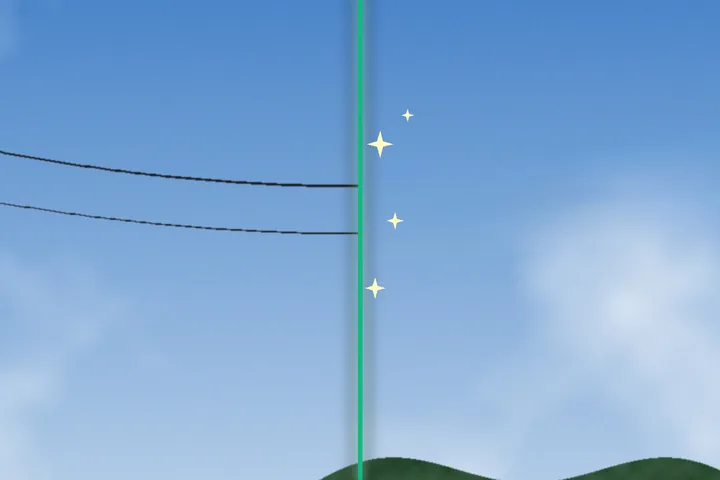
Remove Power Lines from Photo
Tap a wire once and Wire mode traces it across the frame
Open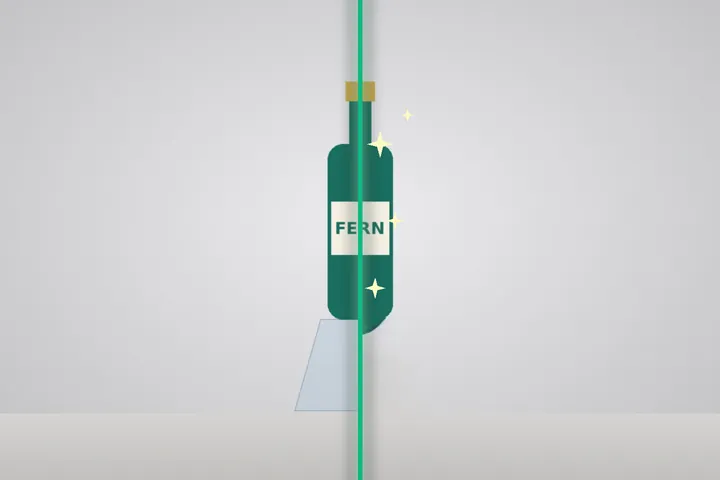
Product Photo Cleanup
Remove stands, hooks, loose threads, dust and props from product shots while the product edge…
Open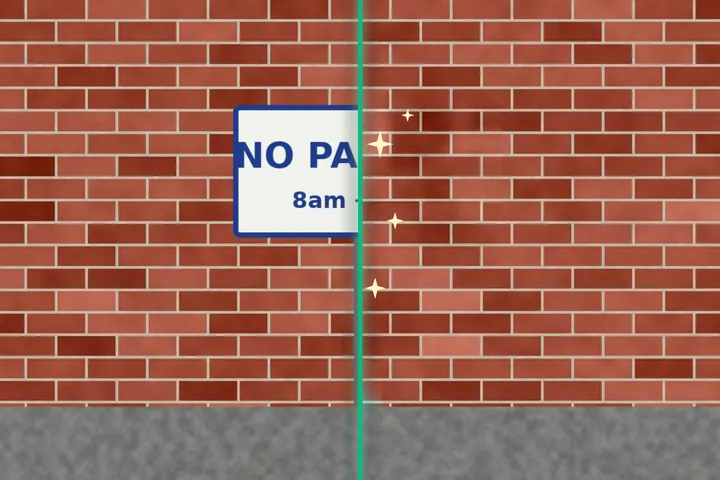
Remove Unwanted Objects
Click an object and Smart Select outlines it on your device
Open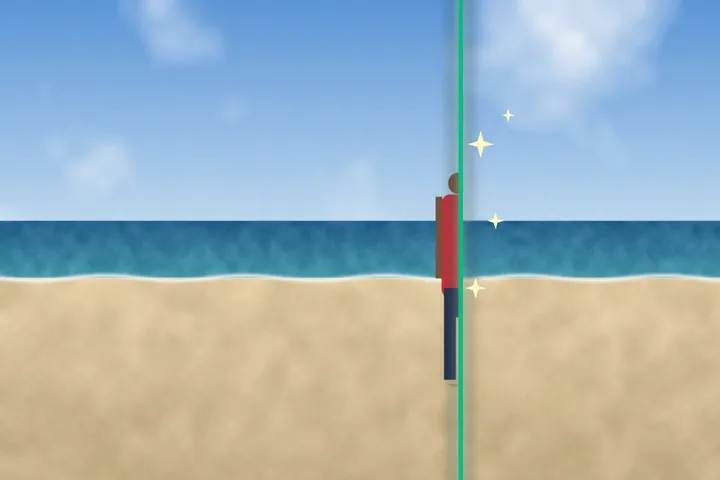
Erase Object from Photo
Brush, click or select anything unwanted and rebuild the area on your device
Open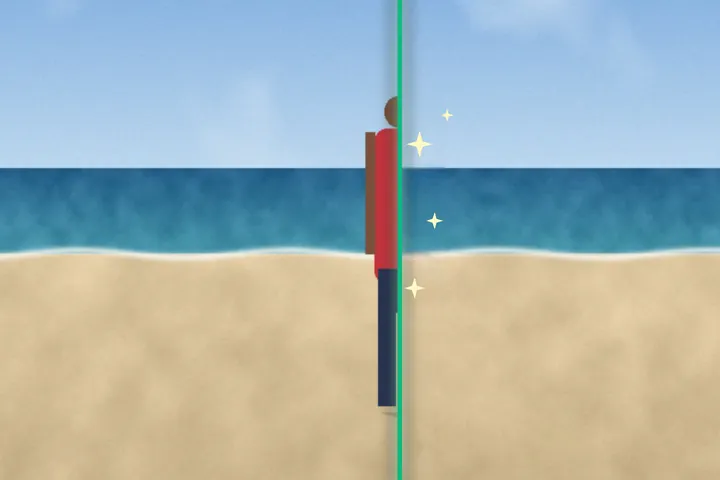
Remove Person from Photo
People mode finds the people who stand out; click the one who should not be there
Open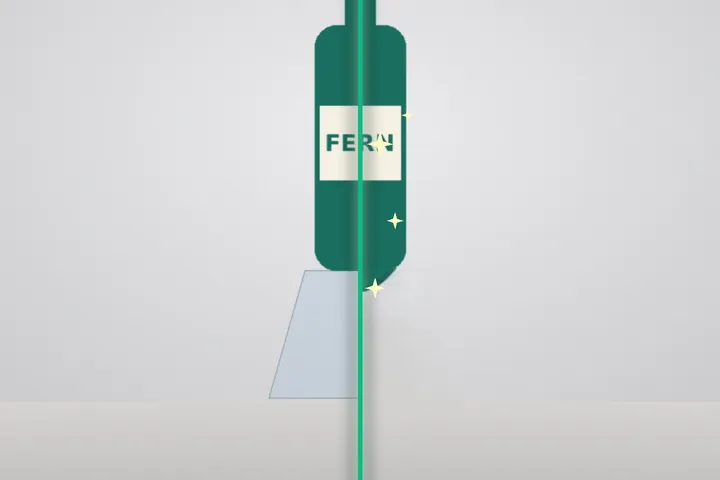
Image Eraser
One brush, two outcomes: fill the area from its surroundings, or make it transparent
Open
Edit Text in Image
Erase the old words, then type new ones at the measured size, colour and angle
Open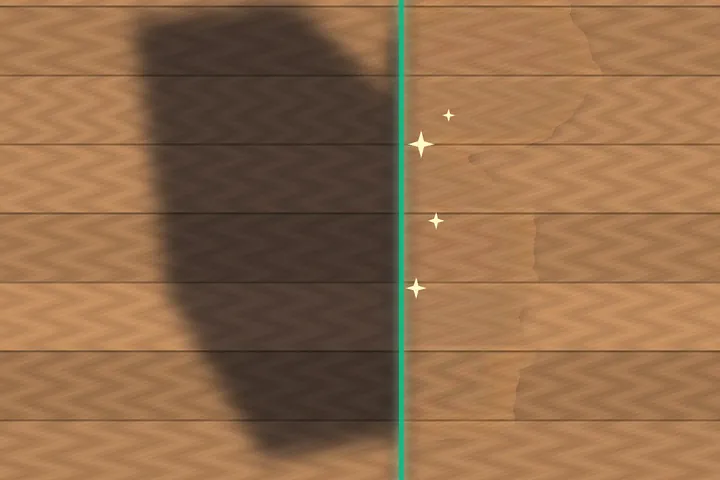
Remove Shadow from Photo
Relight a cast shadow to match the lit surface, keeping the texture under it
Open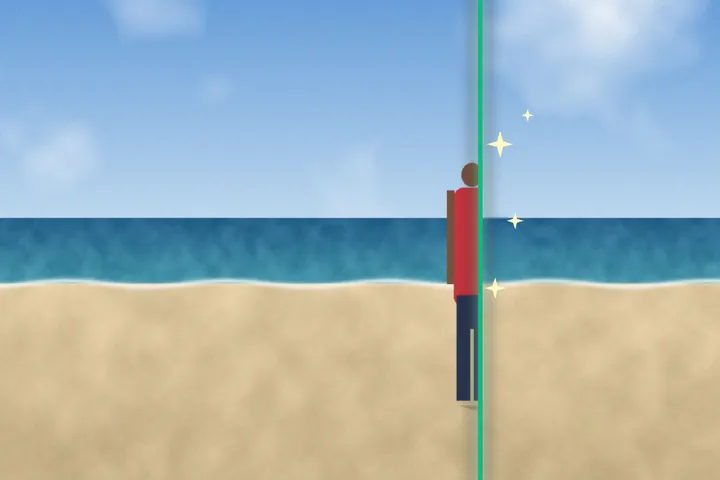
Remove Photobombers
Mark who stays; everyone else is erased one by one, smallest first
Open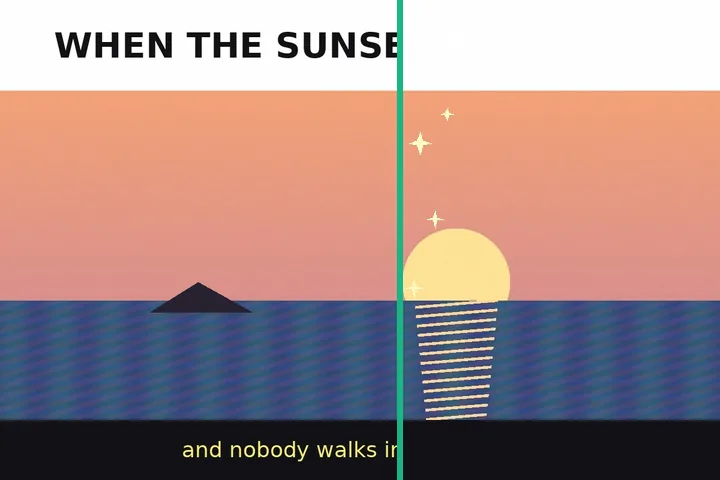
Remove Caption from Photo
Clear the words off a meme bar or subtitle strip, or crop the bar off
Open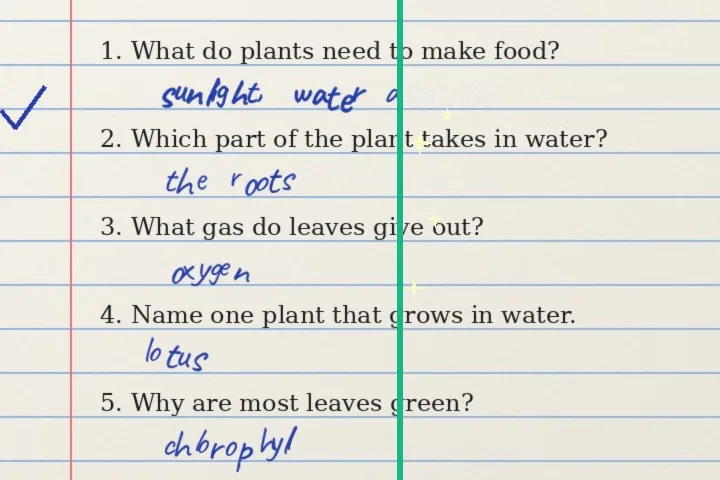
Remove Handwriting from Image
Click one handwritten stroke; the answers go, the printed questions and lines stay
Open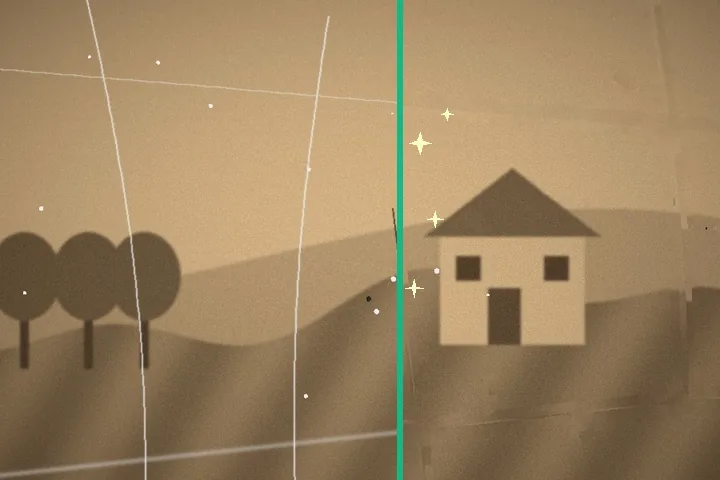
Remove Scratches from Old Photos
Scratches, dust and creases found or traced, repaired with the print's own grain
Open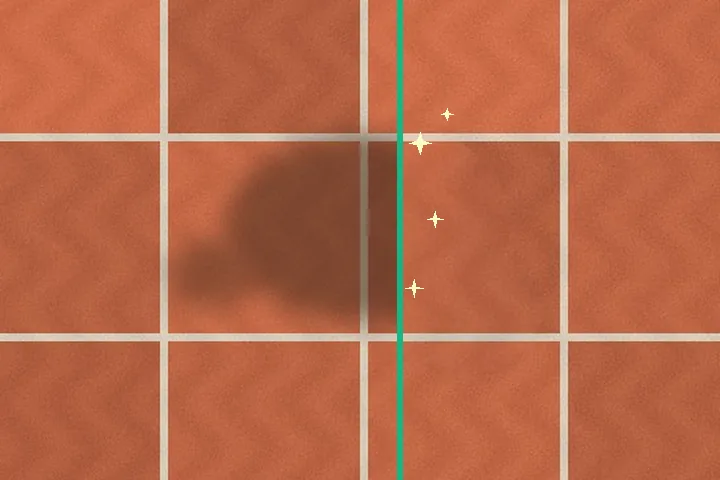
Clone Stamp Tool
Alt-click a source and paint over the flaw; Heal matches the light at the edge
Open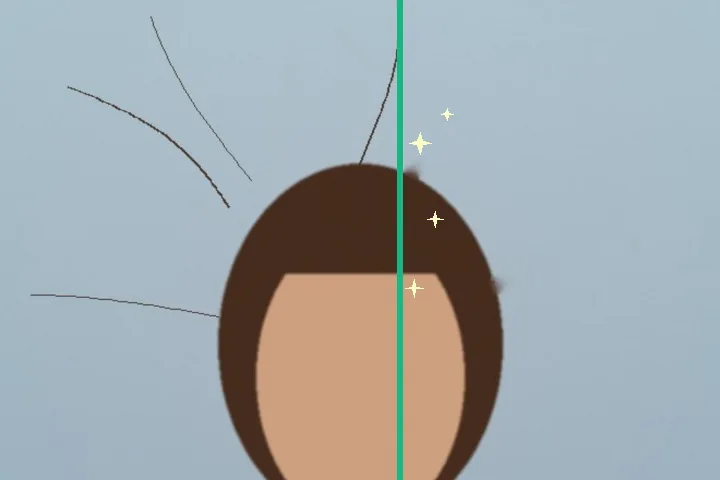
Remove Stray Hair from Photo
Flyaways over a plain backdrop found or traced, and the backdrop rebuilt
Open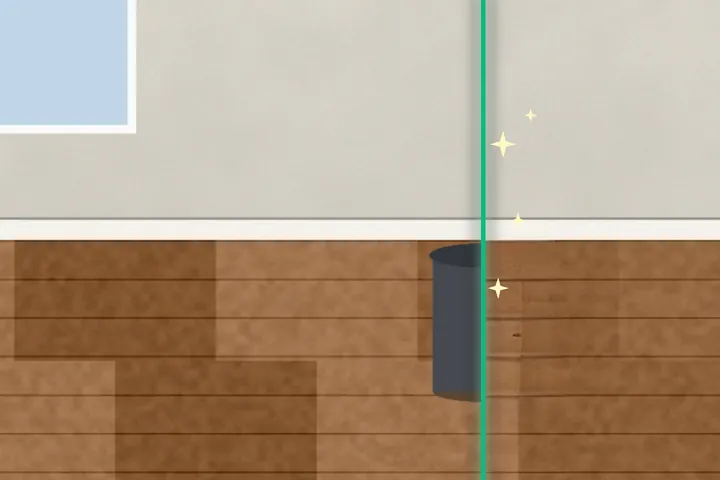
Real Estate Photo Cleanup
Bins, cables and clutter out, with Structure Repair keeping walls and floors straight
Open
One tool, many cleanup jobs
Pick the job. The same editor opens, set up for it.
People
Photobombers and passers-by. People mode finds them; you click who goes.Open this workflowObjects
Bins, bags, chairs, cones, branches. Click with Smart Select or brush them.Open this workflowText
Captions, dates, signs and your own overlays — found locally, cleared cleanly.Open this workflowWires
Power lines and cables, traced from a single tap instead of painted by hand.Open this workflowBlemishes
Dust, sensor spots and marks, each repaired with one click.Open this workflowProduct photos
Stands, hooks and threads out; a crisp product edge kept.Open this workflow
Click it or brush it
Select the way the object asks to be selected
A sign is a rectangle. A person is a click. A wire is a tap. A stray hair on a product is a two-pixel brush. EraseObject gives you all of them and never forces one — and every selection can be refined with the add and subtract brush before you erase.
Smart Select
Click an object and an on-device segmentation model outlines it. Not quite right? Pick a smaller or larger alternative, or add and remove areas with more clicks.Brush, lasso, rectangle
Precise manual control, sized in photo pixels so zooming never changes what a stroke covers.People, Text, Wire
Purpose-built finders for the three things people remove most, all running locally.Shadow assist
After a Smart or People selection, the attached shadow is proposed in amber. Include it with one click — never silently.
Private by design
Your photo does not need to leave your computer
EraseObject is built differently from typical AI photo tools. The AI model comes to your browser instead of your photo going to an AI server.
Your image stays on your device
Decoded, edited and encoded in the tab. There is no upload endpoint to send it to.
No credits, ever
Repeated removals cost nothing to serve, so nothing is counted or charged.
Works offline
Once the eraser model is cached, open, erase and export without a connection.
No server queue
Nothing waits behind other people's jobs; your device does the work as soon as you press Erase.
Where your data goes
- Your file
- → browser memory
- → local preprocessing
- → local model inference
- → local canvas composite
- → local download
No image processing API. No server inference. No image storage.
See how local processing worksStep by step
Select → Erase → Refine → Download
- 1
Open a photo
Drop, paste or choose an image.
- 2
Select what should disappear
Brush it, click it with Smart Select, or use People, Text or Wire mode.
- 3
Erase locally
On-device AI reconstructs the missing area from the pixels around it.
- 4
Refine
Undo, restore, expand the mask or try another result.
- 5
Download
Export the cleaned image at the best available resolution.
Built for detail
Precision when it matters, speed when it does not
Only the pixels you selected are replaced — every other pixel is copied through exactly, at the photo's full resolution.
Structure Repair
Walls, skirting, shelves and horizons are continued through the gap before the AI fills it — the difference between a bent floor seam and a straight one.Try another result
Up to four candidates from the same selection: wider context, a mirrored pass, or texture copied from nearby. Pick the one that looks right.Restore anything
Paint the original back with the Restore brush, restore a single history step, or undo step by step — history keeps only the changed area, so it runs many steps deep.Zoom to the pixel
5% to 1600%, a navigator at high zoom, and a mask that stays aligned at every level.Compare three ways
Hold to see the original, drag a split divider, or toggle between them.Clean up photo mode
Mark several distractions and erase once — each is rebuilt separately from its own surroundings.
Specialised workflows
Presets for the jobs people bring most
Real-estate cleanup
Structure Repair on, wider context, lasso first.Open this workflowPhoto cleanup
Mark every distraction, erase them as separate edits.Open this workflowRemove objects
Smart Select first, shadow suggestions on.Open this workflowBatch cleanup
Same mask across a fixed-camera set, ZIP out.Open this workflow
Works offline after the first download
The models are files. Your browser keeps them.
The first time you press Erase, the editor tells you exactly what it needs to download — the eraser model and the engine that runs it — and how large they are, before a byte moves. They are stored by your browser and reused for every later edit, on this page and on every other page of this site.
Smart Select and People mode each have their own model and are only downloaded if you use them. The AI performance panel in the editor lists every model with its size, shows which are ready, and lets you remove any or all of them.
Good to know